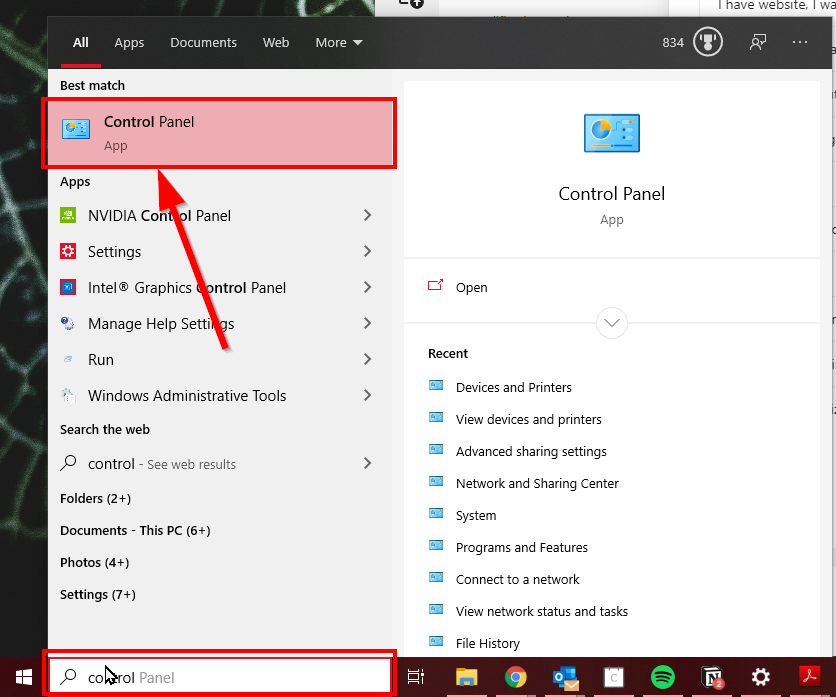
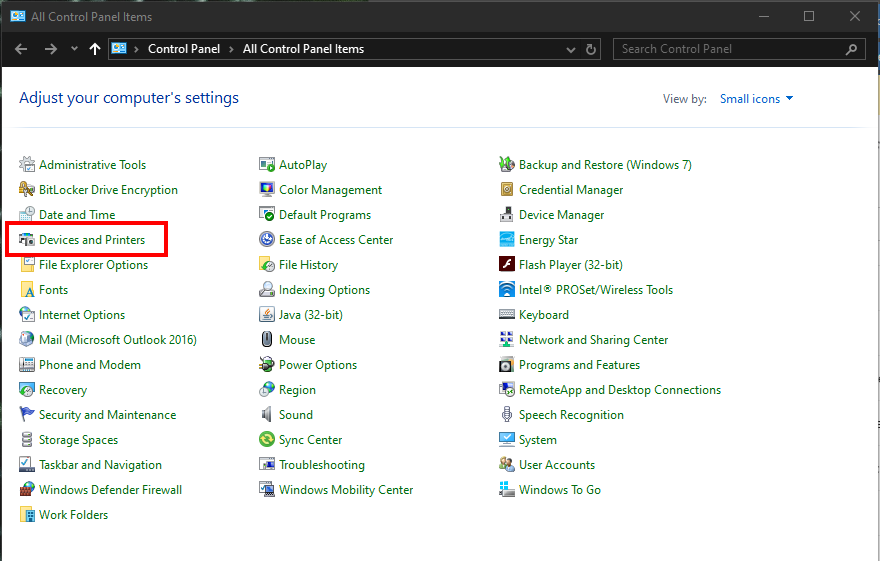
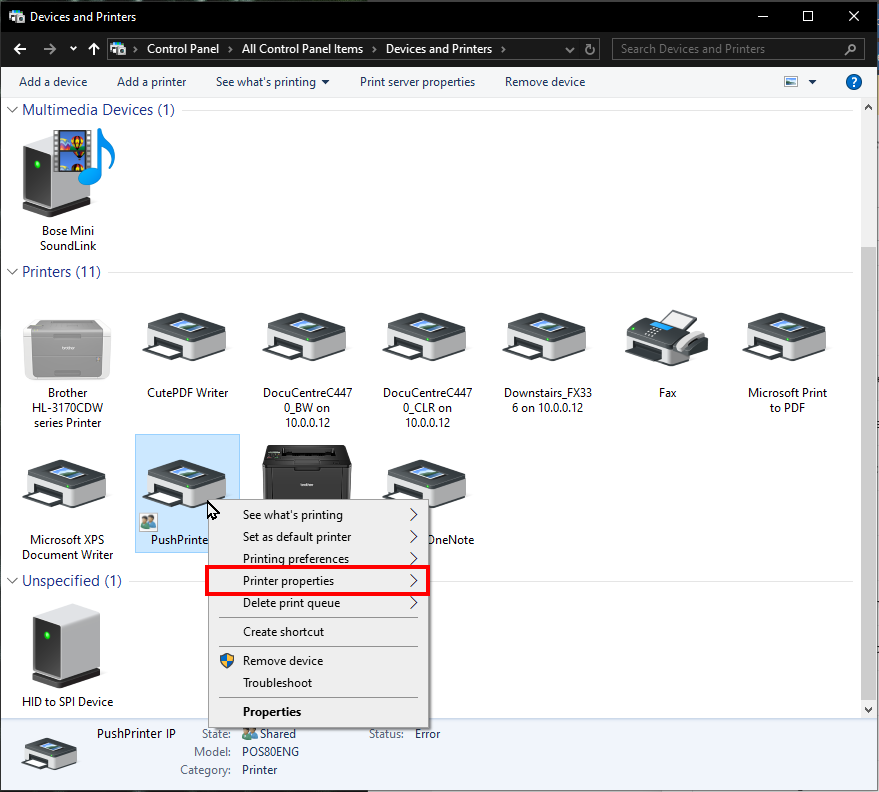
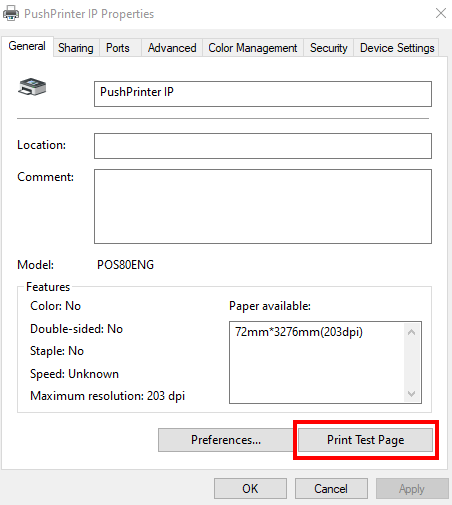
4. To test that the printer is working, please press Print Test Page
5. If the test page does not print. Then please connect and install the printer correctly.
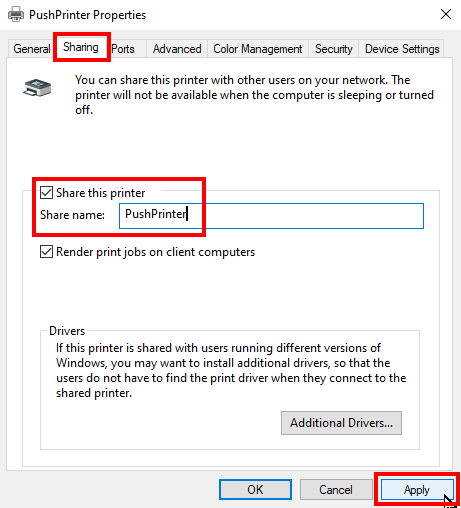
6. If the test page does print, please share the printer with the following settings;
7. Click apply
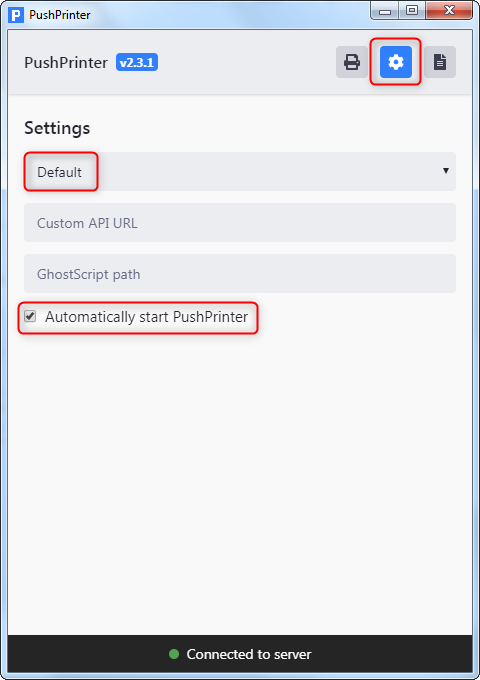
8. Open the PushPrinter application. Please check that the settings display as follows;
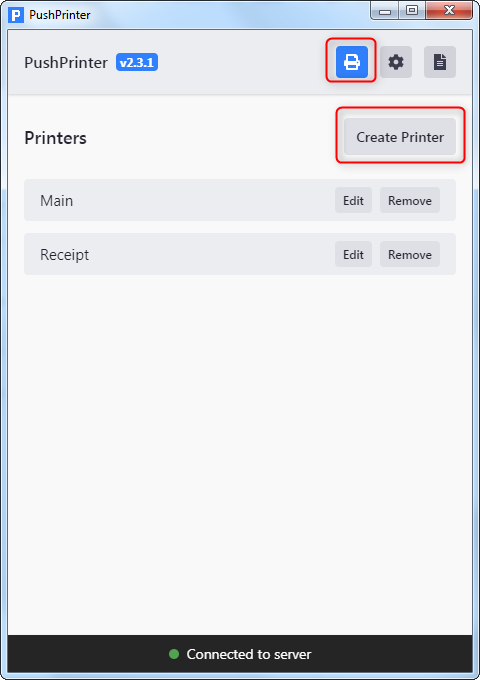
9. Now either 'Create Printer' or 'edit' your existing printer:
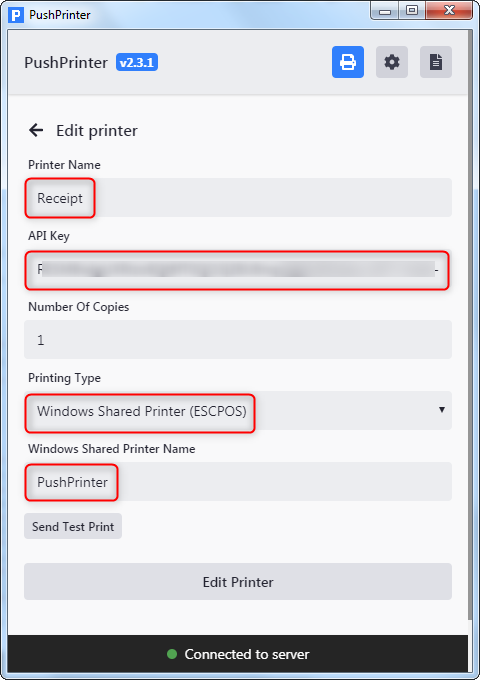
10. Add settings including: API key from the printer just created, ensure printer type is Windows Shared Printer (ESCPOS). Windows shared printer name must match the shared printer name that was added before.