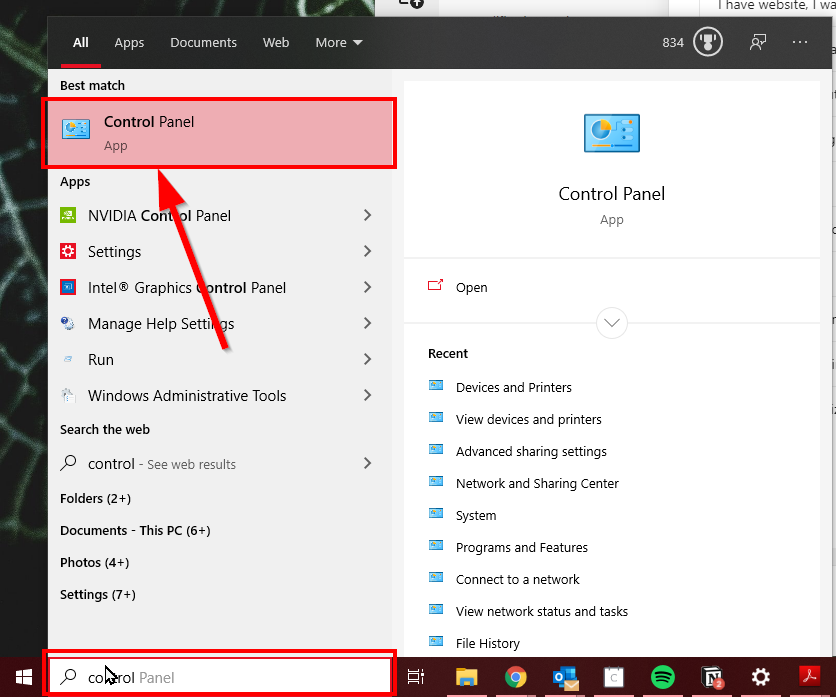
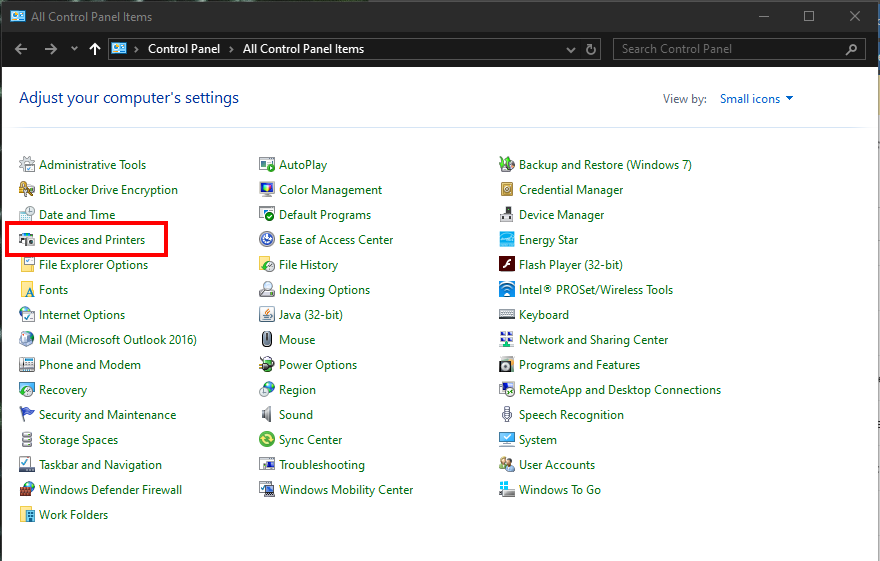
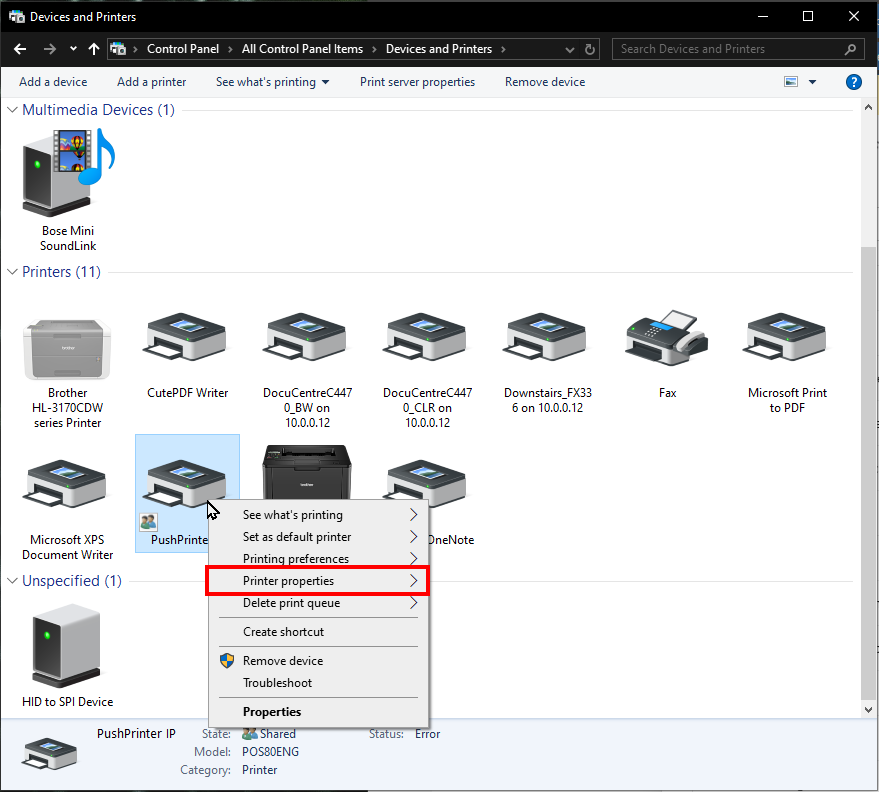
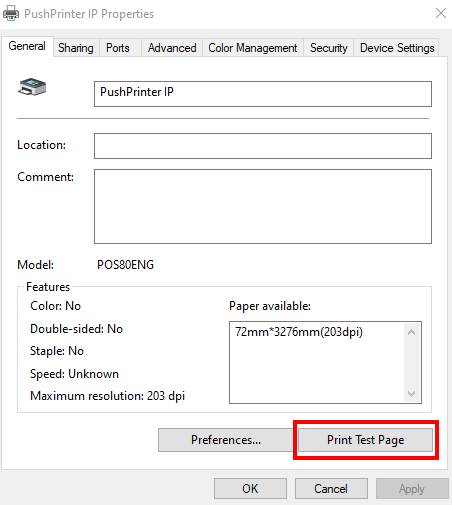
4. To test that the printer is working, please press Print Test Page
5. If the test page does not print. Then please connect and install the printer correctly.
6. Open the PushPrinter for Windows program application
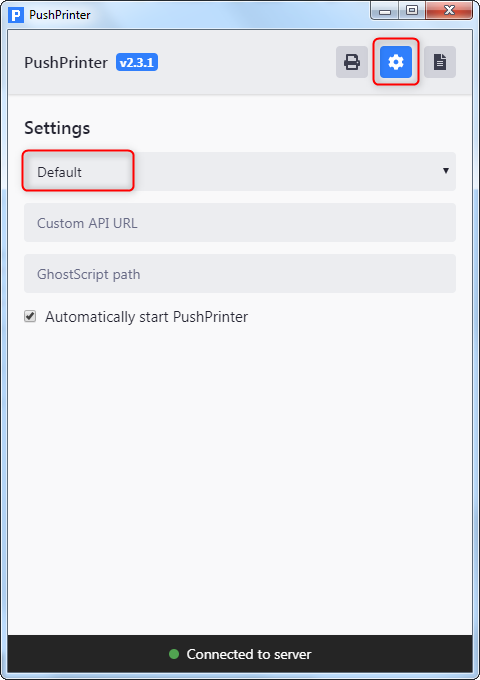
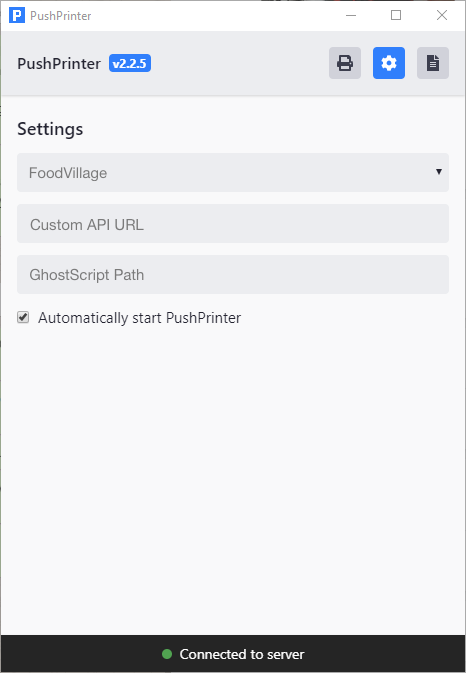
7. Go to the 'settings' cog and select the default or FoodVillage provider profile from the dropdown list.
8. Enable 'Automatically start PushPrinter'. (This allows the application to auto-start when resetting your machine).
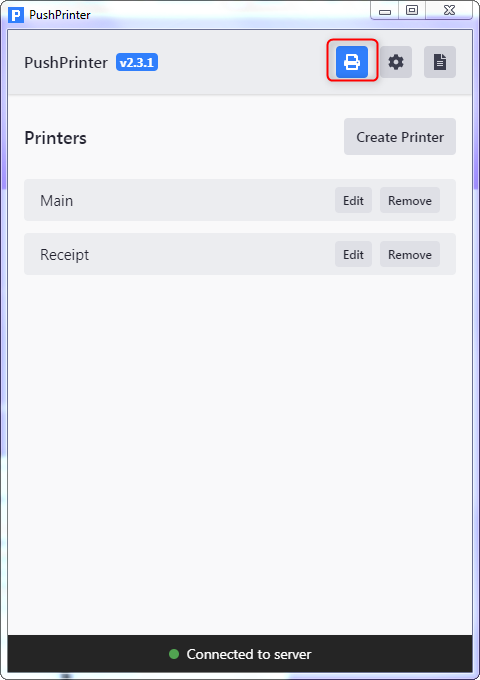
9. Press the printer button
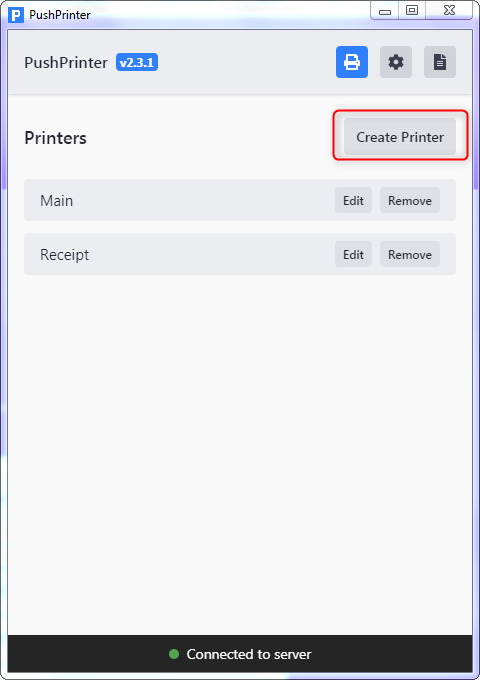
10. Using the Create Printer button, create printer
11. Add settings including API key from the printer just created.
For network printer: Name the printer. Add API printer (found in store printer settings), set number of copies, add printer IP address and set port to 9100).